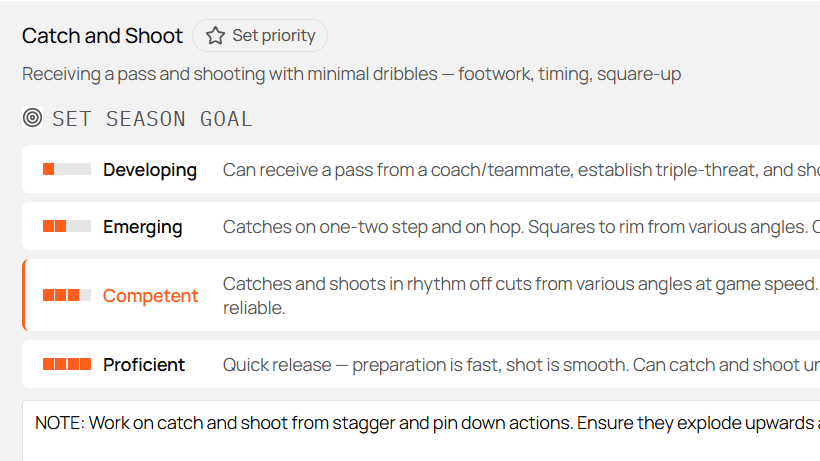
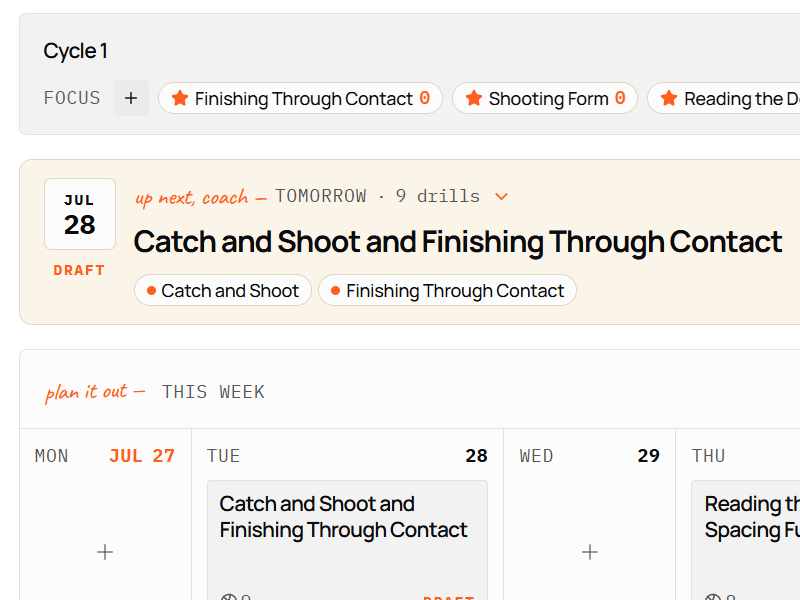
Shared coaching needs more than a group chat. A club can have a written philosophy, a shared drive full of PDFs, and coaches who still teach the same skill three different ways, because coaching knowledge lives in personal folders and leaves when the coach does.
Relyx Club gives the staff one place to plan in: a framework the club writes and owns, drills and practice templates the whole staff can use and contribute to, and head coaches and assistants planning a season together rather than sending files around.
Decide what to standardize first
Before you configure anything, separate club standards from individual coaching choices.
Good candidates for shared standards:
- Skill language and development levels.
- Expectations by age group.
- A curated set of trusted drills.
- Reusable practice templates.
What stays with the team coach:
- The exact plan for this week.
- Adjustments for attendance and competition.
- Practice-specific notes.
- Which club resources fit this team today.
The goal is a stronger starting point for every coach. Each team still creates its own goals, priorities, and season plan from there.
1. Create the club workspace
Open Club and choose Create a club workspace. Enter the club name. Whoever creates it becomes an admin.
The workspace needs an active club plan before it can invite coaches and unlock collaboration. Choose the number of seats you need and complete activation.
Each invited coach uses one seat, including invitations still pending. Every coach in the club receives Relyx Pro along with access to the workspace, for as long as the club stays active.
Set the club identity
Open Settings and then Club. Admins can update the club name and logo, review the plan and seat capacity, add seats, open billing management, and manage the coaching roster.
2. Invite the coaching staff
In the Coaches section, choose Invite a coach, enter their email, and pick a role.
Member is right for most coaches. Members get access to the shared club resources, can contribute their own drills and templates to the club library, and can work on any club season they are part of.
Admin can manage club-level settings and content. Give it only to the people responsible for the workspace, the roster, the standards, or billing.
The coach gets an email. Pending invitations appear in the roster and hold a seat until they’re accepted, revoked, or expired. If the club is at capacity, add seats or revoke an unused invitation before inviting anyone else.
3. Get seasons into the club
Joining the club doesn’t expose anyone’s seasons. A coach decides to make a season a club season, and does it themselves.
The reason to is what the club gives back. A club season plans against the club framework rather than the default Relyx guide, and it can have co-coaches, so a head coach and their assistants work on the same practices, goals, and priorities instead of sending files around.
A coach converts a season by opening its management dialog, finding the Club section, choosing Share with [club name], and adding co-coaches from the roster.
From there the head coach owns it: they add or remove co-coaches, hand over the head-coach role, or move the season back to personal, which removes co-coach access. Co-coaches can leave a shared season themselves.
As an admin you can transfer the head-coach role, in case a coach leaves mid-season with the team still to run. That is the extent of it.
4. Create the club development framework
On the Club home, find Club development framework and choose Set up.
Relyx brings the skills. What your club writes is what each level means and which age should reach it.
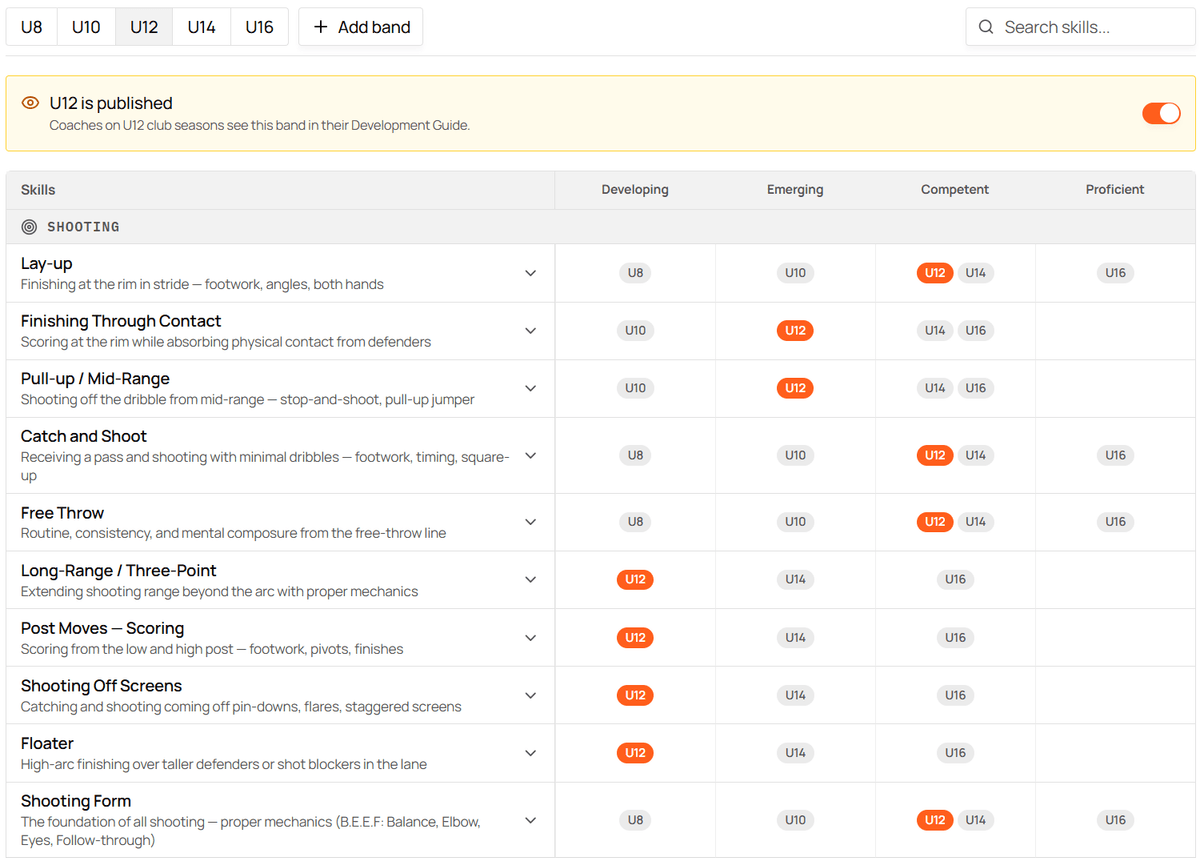
Age bands run across the top as tabs. Skills run down the left, the four levels across, and in each row you place the bands where they belong. One screen then shows a whole progression: Catch and Shoot reaching Competent by U12, Long-Range Three-Point still Developing at U12 and only Competent by U16.
Write what each level means
Expand a skill to edit the description of each level. These descriptions apply across every age band, so Competent means the same thing at U10 as it does at U16. What changes between bands is which level they are aiming at.
This is where the club’s own language goes, and it is the part that makes two coaches assess a player the same way.
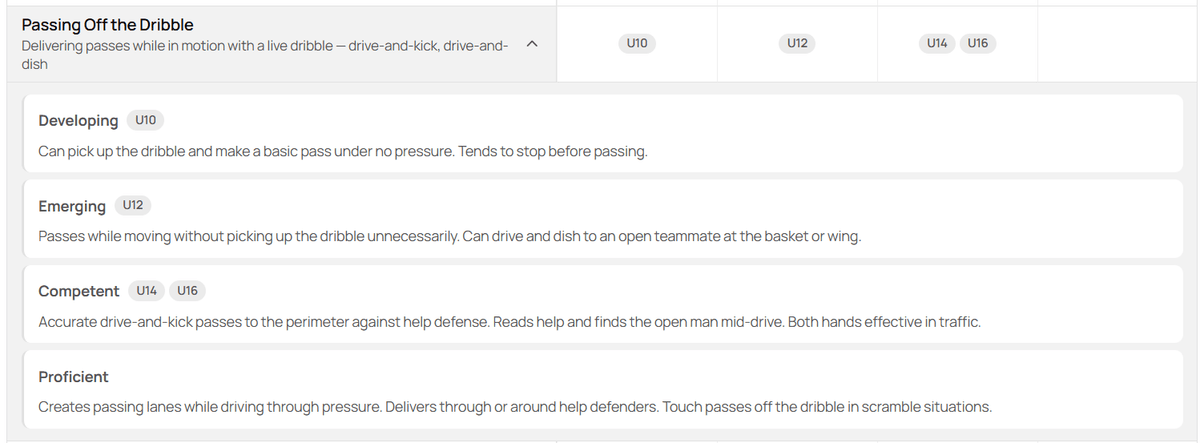
Edit these when the Relyx wording doesn’t match how your staff talks, or when it doesn’t describe what you actually look for.
Set the targets for each band
Add a band, then work through the skills that matter. You can start from the Relyx recommendations, copy one of your other bands, or start empty. Starting from Relyx is usually fastest: review every recommendation and change it to match how your club actually thinks.
Add coaching notes where you want to give some extra context for that age.
Publish a band when it is ready
Each band has its own publish toggle, and nothing is live until you use one. Until then you can add bands, move targets around, and rewrite descriptions without anyone seeing a half-finished framework.
Publishing a band publishes the framework. It replaces the Relyx guide across every club season, and what coaches see is whatever you have published so far: publish only U12 and they get a framework with one band in it. So have the bands you actually coach ready before you flip the first switch. Personal seasons are unaffected throughout.
5. Build the shared drill library
The club library should hold resources the staff can trust and reuse.
Any coach can contribute. They open one of their own drills, open its actions, choose Send to club, then decide whether to copy or move it.
Copy to club leaves the coach’s original in My Drills and gives the club its own copy. It fits when the club wants a standard version while the coach keeps their own, or when the two are expected to diverge.
Move to club transfers the drill: it leaves My Drills and becomes club property, which admins can then edit or delete. Use it when there should be one authoritative version.
Set a bar with your coaches for what gets in. A drill worth sharing has a clear name, useful skill and age tags, complete setup and instructions, the coaching points that express your club’s standard, and a diagram where it genuinely helps. Agreeing that once is easier than editing forty entries later.
6. Build the shared template library
Good club templates include a teaching progression for one concept, a warm-up sequence, and a pre-game or return-to-training structure.
A coach contributes one by:
- Creating or opening a personal template under Practices and then Templates.
- Reviewing its age range, target skills, drills, and timing.
- Opening its actions and choosing Move to club library.
- Deciding, if it uses personal drills, whether those drills are copied or moved into the club library alongside it. A template can’t reference a drill the club doesn’t have, so they travel with it either way.
That move is permanent from the coach’s personal library. The template becomes club property and appears under the Club tab, where other coaches choose Use in season to create their own copy and adjust it without changing the club original.
7. Give it an operating rhythm
Software doesn’t create alignment by itself. Give the club a simple process to support it.
At the start of the season: confirm the active age bands and framework targets, curate a small starting library, and sit down with new coaches to show them how the club actually uses Relyx.
During the season: coaches share the drills and templates that proved useful, head coaches keep their season priorities and cycles current, and club leaders improve shared resources instead of uploading duplicates.
The framework should shape weekly choices without becoming admin work.