You already have a drill library. It’s just spread across three notebooks, a camera roll, some saved posts, a folder of old practice plans, and your memory. When you need the right drill on a Sunday evening, none of that is searchable.
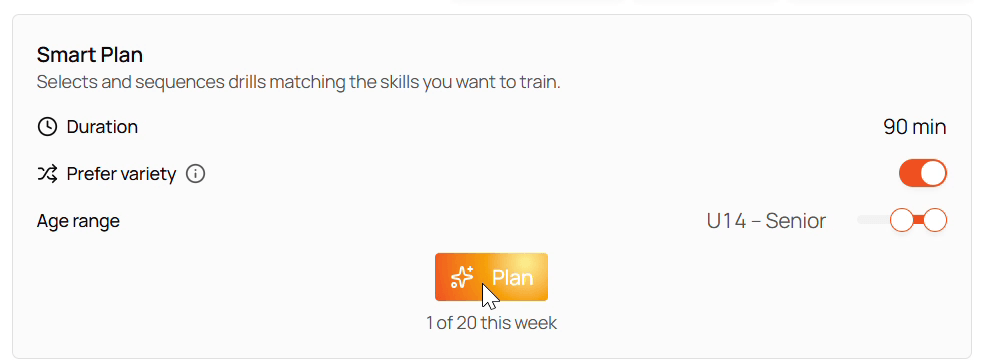
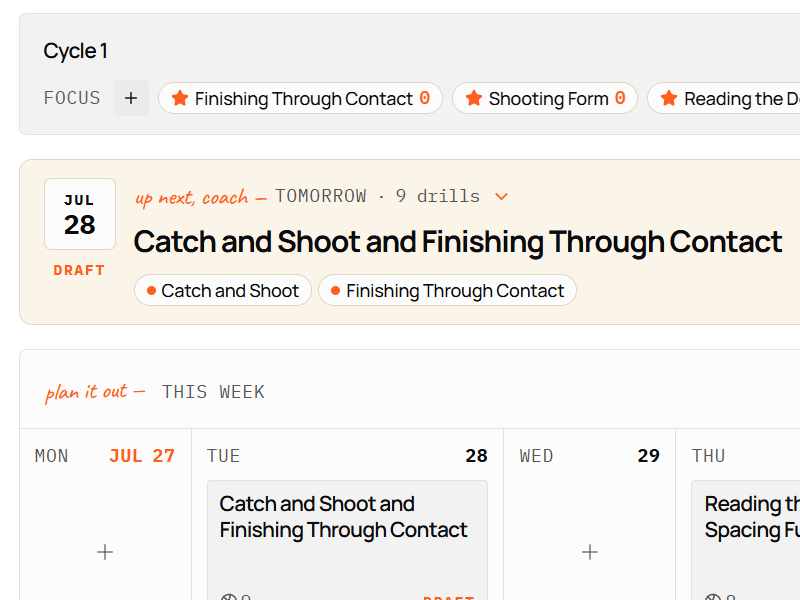
Relyx supports you in building a toolbox you can search, understand, and immediately apply while planning. Having it in one place is what makes planning quick: filter to the drills that fit tonight’s focus, drop them straight into the practice, and let Smart Plan draw on the same collection when you want a draft.
What makes a drill reusable?
A reusable drill answers five questions:
- What skills does it develop, and what is the goal?
- How is it set up?
- What do players do?
- What should the coach watch for?
- Which variations keep it fresh, make it harder, or more game-like?
The name alone almost never carries enough. But you don’t need an essay either. Capture what your future self, or another coach, needs to run it correctly, and enough that Smart Plan can tell what the drill is for and reach for it at the right moment.
The library tabs
Open Drills from the navigation.
All shows everything available to you. My Drills holds drills you created or copied into your own toolbox. Relyx holds the curated Relyx library. Club appears when your active Relyx Club shares content.
1. Search before you create
Before adding anything, search for the name or the skill it develops.
If a suitable Relyx or club drill already exists, use it. If you want your own variation, open the drill’s actions and choose Duplicate to copy it into My Drills, where you can edit freely.
This is what stops small naming differences from filling your library with near-duplicates.
2. Create a custom drill
Choose New Drill. Relyx opens an untitled drill in edit mode.
Start with the fields that make it findable: Name, Type, Duration, Minimum and maximum players, Age range, and Skills developed. Changes save as you go, and Done just leaves edit mode.
A bit of discipline in these fields is what keeps the library usable at fifty drills instead of turning it into a folder you scroll. It costs a minute per drill now and saves the evening you would otherwise spend hunting.
Use a descriptive name
Prefer names that reveal the action or the constraint:
- 2v2 closeout: drive or shoot
- Three-player drive and kick
- Form shooting: balance and follow-through
The name is also what you see when you glance down a practice plan, so it has to identify the drill on its own. A familiar nickname still works, but add a clarifying phrase if another coach wouldn’t know what it means.
Choose the type by its main role
The type is the phase of practice the drill belongs to, and it’s what lets Relyx build a session that progresses:
- Warm-Up. Prepares bodies and points at what follows.
- Skill. Develops a technique or concept, usually with limited defense.
- Small-Sided. 1v1 to 3v3, where players apply it against real defenders and have to decide.
- Team. The idea inside how the team actually plays.
- Scrimmage. Live 5v5 or close to it.
Set realistic player and age ranges
These are what make the planning filters work, so the range should cover every age you would actually run the drill with, including with a variation. Too narrow and the drill never surfaces when you need it.
Don’t stretch it to the point of meaninglessness either. A range of U8 to Senior tells a filter nothing and the drill will show up in every search whether it fits or not.
Tag the intended skills
Tag what the drill deliberately develops, not everything that might appear in it. Three to five is about right for a focused drill: enough to surface on the searches that matter, few enough that the tags still mean something.
Small-sided games and scrimmages are the exception. Training several things at once is the point of the format, so seven or eight tags there is fine. Ask yourself whether you would actually coach each one during the drill.
Get those fields right and the drill is already useful. Here is one with everything filled in:
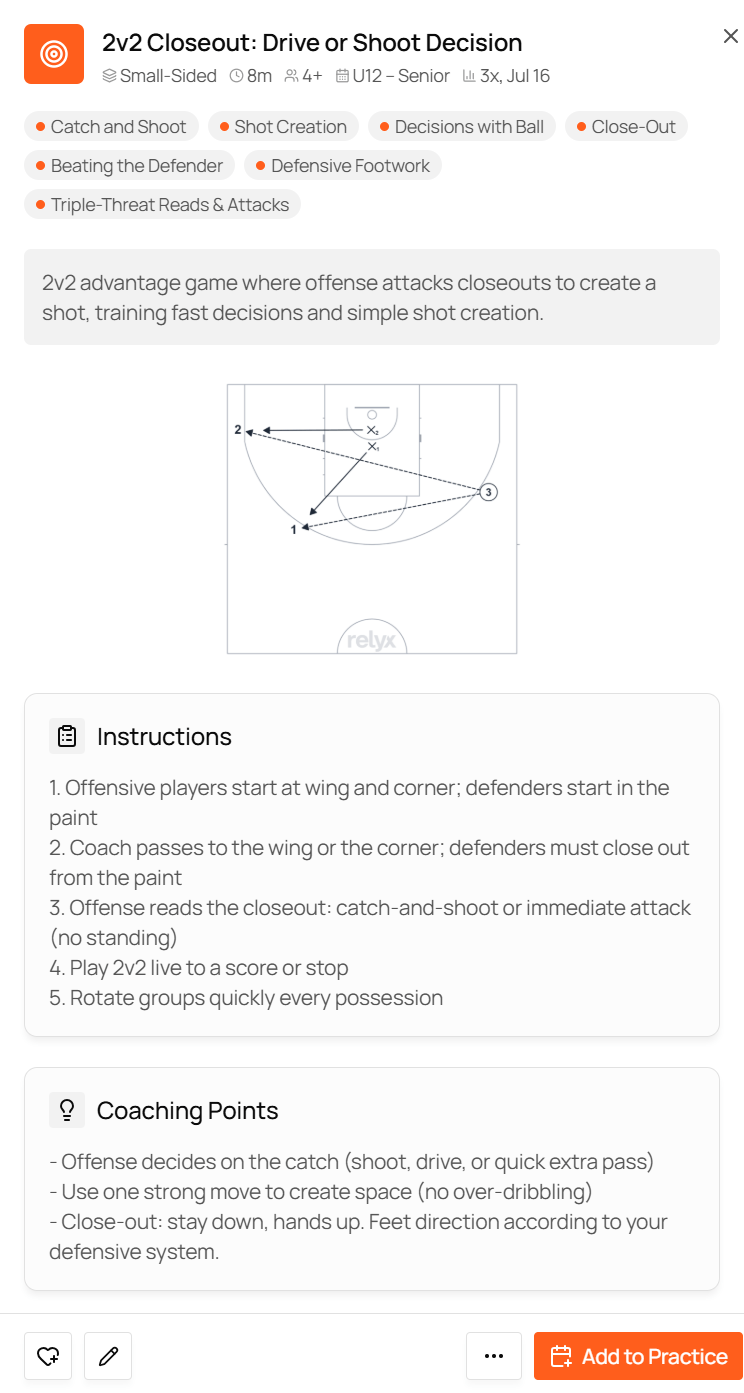
Everything down to the summary is what makes the drill findable. Everything below it, covered next, is what makes it runnable by someone who has never seen you coach it.
3. Write the minimum useful description
Each content field does a different job.
Summary. One or two sentences on what the drill is for. Say the goal, not just the shape:
Players attack a live closeout in 2v2. The goal is to read the defender’s momentum early and commit to a shot, a drive, or the pass that beats the help.
Instructions. Setup and flow in the order a coach needs them: where players begin, how the repetition starts, what offense and defense may do, how a repetition ends, how players rotate.
Coaching points. The few observations that matter most:
Read the defender’s momentum before putting the ball down. Attack the top foot when driving. Arrive balanced and ready to shoot.
Variations. How to adapt it: add or remove a defender, limit dribbles, change the scoring rule, start from a different position, raise the decision pressure.
Reference link. A YouTube or Instagram link when the movement is easier to watch than to read. YouTube links play inline on the drill, so you can check the clip while planning without leaving Relyx. Keep the written instructions complete anyway: the drill should still be runnable if that page disappears.
For a model of how much to write, open anything in the Relyx drill library. Those entries are the standard your own drills should reach, and copying their level of detail is faster than inventing your own house style.
4. Add an image or court diagram
Under Images & diagrams you can paste a screenshot, upload an image, or draw a court diagram. A drill holds up to five combined images and diagrams.
Choose Draw diagram to open the court editor, then use player markers, cones, arrows, shapes, and labels to show what text explains slowly. The arrow types carry the usual meanings, so a diagram reads the way a coach expects: solid for a cut, dashed for a pass, wavy for a dribble.
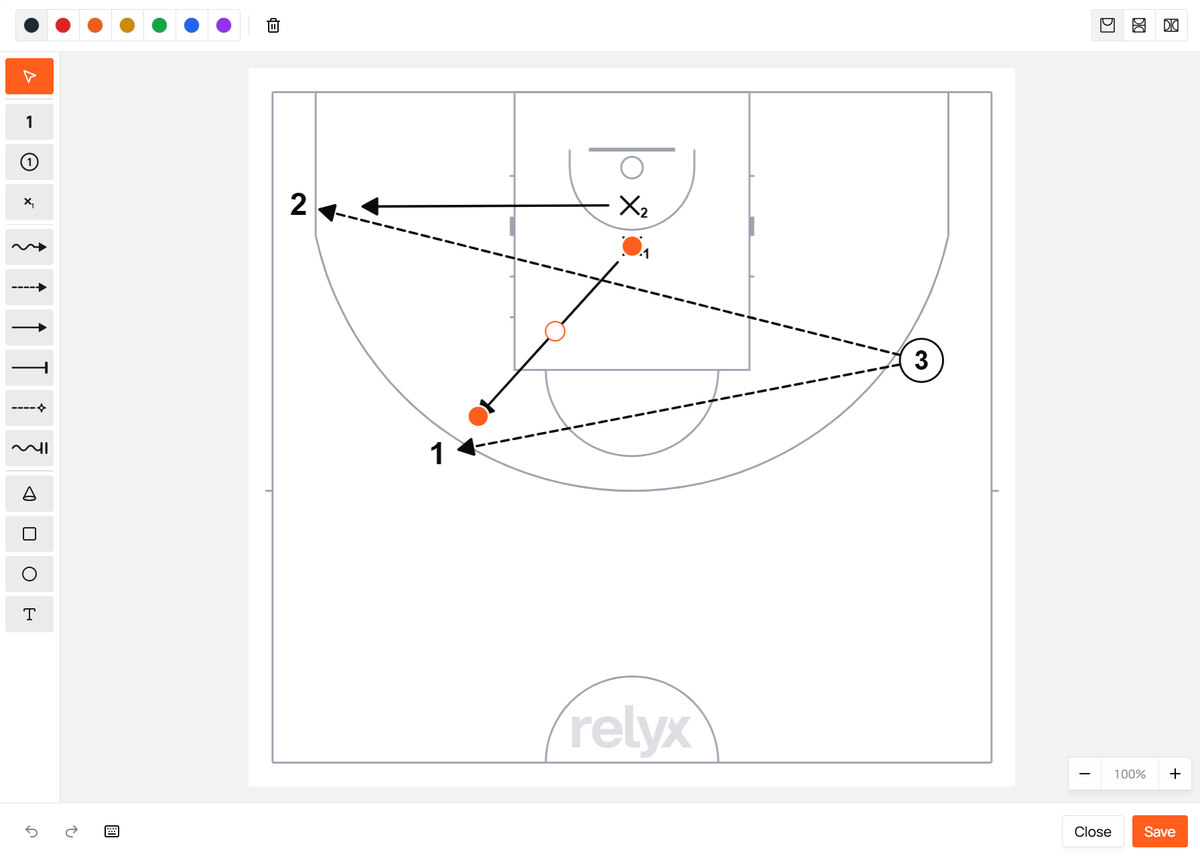
Keep diagrams readable:
- One important phase per image where possible.
- Consistent player numbering.
- No arrows crossing without explanation.
- A short label when the action isn’t obvious.
- Clarity over reproducing every possible movement.
5. Organize for planning
The library becomes useful when you can find the right drill under real constraints. Filter by skills, drill type, number of players, age range, favorites, or Relyx pack.
Sorting answers different questions:
- Last used: what have we done recently?
- Least used: what could keep practice feeling fresh?
- Last modified: what did I just add or improve?
- Random: give me a different starting point.
Favorite the drills you trust and reach for. Favorites should be a shortlist, not a second copy of the library.
6. Reuse drills in practices
From a practice, choose Add Drill. The picker uses the same library and surfaces drills related to the practice’s target skills.
When you add one, its default duration carries into the practice where available, you can change that duration for this session only, you can add practice-specific notes without touching the stored drill, and opening it shows the full instructions, coaching points, variations, and media.
Keep the library entry general enough to reuse. One-off reminders for a particular team or day belong in the practice item’s notes.
7. Curate instead of collecting
Review My Drills occasionally. Merge or remove entries when two describe the same activity, a drill no longer fits how you coach, the name and tags make it hard to find, or the instructions are too vague to run.
Improve a drill right after using it: add the coaching point players needed most, clarify the confusing rotation, record the variation that worked, fix the default duration or player range.
Common mistakes
Entering the whole collection at once
Start with the drills you’re using now. Add old material when it becomes relevant.
Tagging too broadly
Tags describe intended development, not every action visible in the drill.
Writing instructions but no coaching points
Instructions explain what happens. Coaching points explain what good looks like.
Saving links instead of knowledge
External references help, but store enough to run the drill without them.
Never improving entries after use
The best moment to fix a drill record is right after you find out what was unclear.